Getting started
Create your first chat video
Chatimator turns a written conversation into an animated video that looks like a screen recording of a real phone. Here's the full loop, start to finish.
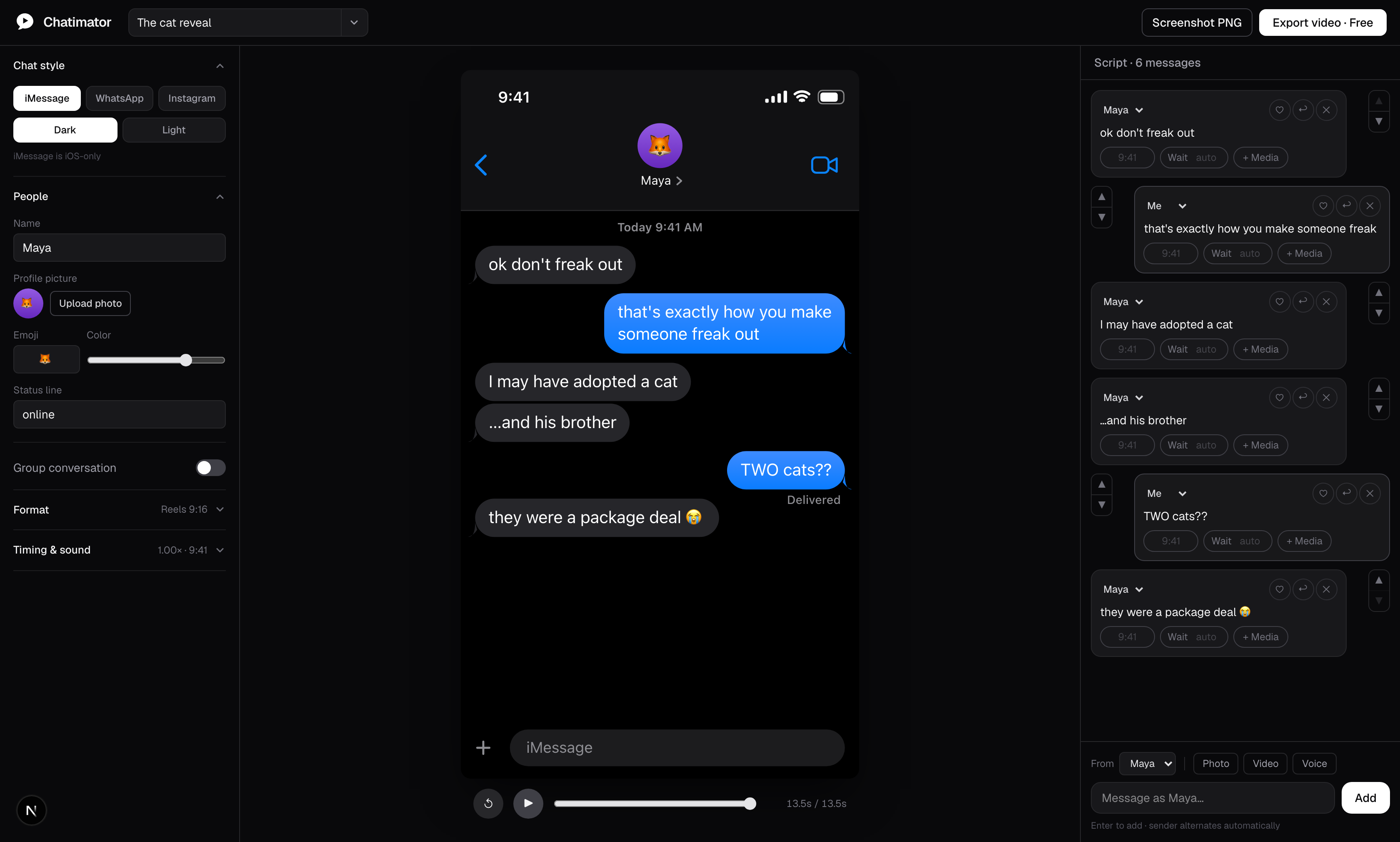
1. Open the editor
Go to the editor. No account is needed to write and preview — your work saves automatically to your browser's local storage. You'll sign in with a free Google account when you're ready to export.
2. Write the conversation
Type a message and press Enter to add it as a bubble. The sender alternates automatically between the contact and you; you can switch any message's sender afterwards. Write the whole exchange the way you'd actually text it — short bubbles read better on video than paragraphs.
Don't want to write it yourself? Press ✦ Generate and describe the story in a sentence — AI writes the whole conversation and you edit from there.
3. Name the contact
Set the contact's name and photo in the chat settings. For group chats, add members and each incoming message can come from a named member.
4. Watch the preview
Press play. The conversation animates with typing indicators before incoming messages, spring bubble animations, and auto-scroll — exactly what the exported video will look like.
This is an actual export — unmute for the message tones.
5. Export
Press Export and sign in with a free Google account to render the MP4 in your browser. The free plan includes one 720p export per month with a small watermark; Pro unlocks unlimited 1080p 60fps exports with no watermark. Message sounds are included in the audio track, and on most machines a 30-second video renders in a few seconds. Prefer a still image? Export a PNG screenshot instead.
That's it — the file downloads like any other, ready to upload to TikTok, Reels or Shorts.
Next steps
- Generate a script with AI — describe a story, get the conversation
- Choose a platform and style — iMessage, WhatsApp or Instagram DM, light or dark
- Pick the right video format — 9:16, square or 16:9